Point 繪畫點
Activate the point feature type for data capture. 啓動畫點功能獲取數據
 Line 繪畫線條
Capture a straight-line feature using the stylus. 用筆獲取直線物件
 Polyline 繪畫多折線
Activate the polyline feature type for data capture and start a new line feature. 啟動繪畫多折線模式獲取數據及新增線條物件
 Freehand Line 徒手繪線條
Capture a freehand line feature using the stylus. 用筆獲取徒手繪畫線物件
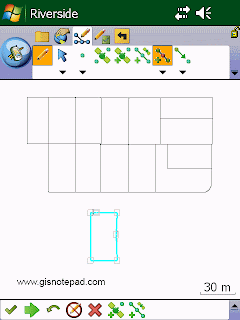
 Rectangle 繪畫矩形
Capture a rectangle polygon feature using the stylus. 用筆獲取矩形物件
 Polygon 繪畫多邊形
Activate the polygon feature type for data capture and start a new polygon feature. 啟動繪畫多邊形模式獲取數據及新增多邊形物件
 Ellipse 繪畫橢圓形
Capture an ellipse polygon feature using the stylus. 用筆獲取橢圓形物件
 Circle 繪畫圓形
Capture a circle polygon feature using the stylus. 用筆獲取圓形物件
 Freehand Polygon 徒手繪畫多邊形
Capture a freehand polygon feature using the stylus. 用筆獲取徒手多邊形物件
 Text Point 點文字
Capture a text feature relative to a point using the stylus. 用筆以點獲取文字
 Text Polyline 線文字
Capture a text feature relative to a line using the stylus. 用筆以直線獲取文字
 Text Polygon 多邊形文字
Capture a text feature relative to a polygon using the stylus. 用筆以多邊形獲取文字
 Text Rectangle 長方形文字
Capture a text feature relative to a rectangle using the stylus. 用筆以長方形獲取文字
 Text Ellipse 橢圓形文字
Capture a text feature relative to an ellipse using the stylus. 用筆以橢圓形獲取文字
Reference to ESRI® ArcPad® 10 Quick Reference